Instagram carousel posts get 3x more engagement than single images — and you do not need to be a designer to make one.
Most beginners see carousel posts from big creators and assume they need expensive tools or serious design skills to pull it off. So they stick to single photos and miss out on Instagram’s highest-performing content format.
In this guide, you will learn exactly how to create Instagram carousel posts for beginners — from planning your slides to publishing with the right dimensions and a caption that keeps people swiping.
Quick answer: To create an Instagram carousel post, tap the + button, select Post, then tap the multi-image stacking icon to add 2–20 photos or videos in sequence. For best results, use 1080x1350px images, hook viewers on slide 1, deliver value across 8–10 slides, and end with a clear call-to-action on the final slide.
What Is an Instagram Carousel Post (and Why Should Beginners Use Them)?
A carousel post is a multi-slide Instagram post — anywhere from 2 to 20 images or videos — that viewers swipe through directly in their feed.
Unlike a single photo or video, a carousel gives you room to tell a story, teach a skill, or walk someone through a process across multiple slides. That extra real estate pays off in measurable ways.
According to a CreatorsJet Instagram Data Study, carousel posts achieve 1.4x wider reach and 3.1x higher engagement rates compared to single-image posts. That is not a small edge — it is the difference between a post that fades quietly and one that keeps climbing.
Here is the part most beginners do not know: Instagram’s algorithm gives carousels a second organic reach opportunity. If a user scrolls past your carousel without swiping on slide 1, the platform re-serves it later in the day — this time showing slide 2 as the lead. One post, two chances to hook someone. (Source: Marketing Agent Blog — Mastering Instagram Carousel Strategy 2026)
Best content types for beginners:
- Step-by-step tutorials
- Tips lists (e.g., “7 ways to…”)
- Before/after transformations
- Q&A posts using audience questions
- Quote or lesson series
If you are building your content strategy for social media, carousels should be near the top of your format mix.
Step 1: Plan Your Carousel Content Before You Design
The biggest mistake beginners make is opening a design tool before they know what they want to say.
Start with a blank document — not a design app. Write out your idea, your format, and the text for every slide before you touch a single template. This prevents blank-canvas paralysis and keeps your carousel focused.
How to plan your carousel in 4 steps:
- Choose one topic. A carousel about “growing on Instagram” is too broad. “5 mistakes beginners make in their first week on Instagram” is specific enough to be useful.
- Pick a format from the list below.
- Map your slide structure: Slide 1 = hook, Slides 2–9 = value delivery, Slide 10 = CTA.
- Write the copy for each slide before designing. Short, punchy text works best — aim for one idea per slide.
You can outline your carousel story before you design it the same way you would plan a written piece — with a clear beginning, middle, and end.
5 Beginner-Friendly Carousel Content Formats
These five formats are the most effective Instagram carousel post ideas for content creators who are just getting started — each one works for any niche and requires zero design experience to execute well.
1. Tips List The simplest format. Pick a number (5, 7, 10) and dedicate one slide per tip. Example: “7 free tools every content creator should be using in 2026.”
2. Step-by-Step Tutorial Number each step and put one step per slide. Viewers feel progress as they swipe. Great for how-to content, recipes, or workflows.
3. Before/After Transformation Show a problem or starting state on slide 1 (or 2), then reveal the result. Works brilliantly for design makeovers, fitness, home improvement, and writing rewrites.
4. Q&A Format Post a question on slide 1 — ideally a question your audience has actually asked you. Answer across the next 5–8 slides. This format drives saves because viewers screenshot answers.
5. Quote or Lesson Series One quote or key insight per slide, with a sentence or two of context. Use a consistent background and font for a polished, cohesive look.
Step 2: Use the Right Instagram Carousel Size and Dimensions (2026 Specs)
Getting your dimensions wrong means Instagram will crop or distort your slides — ruining the design you spent time on.
Here are the correct Instagram carousel size and dimensions for 2026:
| Format | Dimensions | Aspect Ratio | Best For |
|---|---|---|---|
| Portrait (recommended) | 1080 x 1350px | 4:5 | Maximum feed real estate, highest engagement |
| Square | 1080 x 1080px | 1:1 | Consistent look with other square posts |
| Landscape | 1080 x 566px | 1.91:1 | Not recommended for carousels |
Key rules to follow:
- All slides in the same carousel must use the same aspect ratio — you cannot mix portrait and square slides
- Maximum file size per image: 8MB
- Supported formats: JPG or PNG for images, MP4 or MOV for video slides
- You can include up to 20 slides per carousel
Tip: Use the 1080x1350px portrait format whenever possible. It takes up more space in the feed than a square, which means more visibility when someone scrolls past.
Step 3: Design Your Carousel Slides
You do not need professional design software to make carousel slides that look sharp and consistent.
The key rules for beginner carousel design:
- Stick to 2–3 colors from a consistent palette across all slides
- Use 1–2 font styles — one for headings, one for body text
- One idea per slide — if you are cramming two points onto a slide, split it into two slides
- High-contrast text — dark text on light backgrounds (or vice versa) ensures your slide is readable as a small feed thumbnail
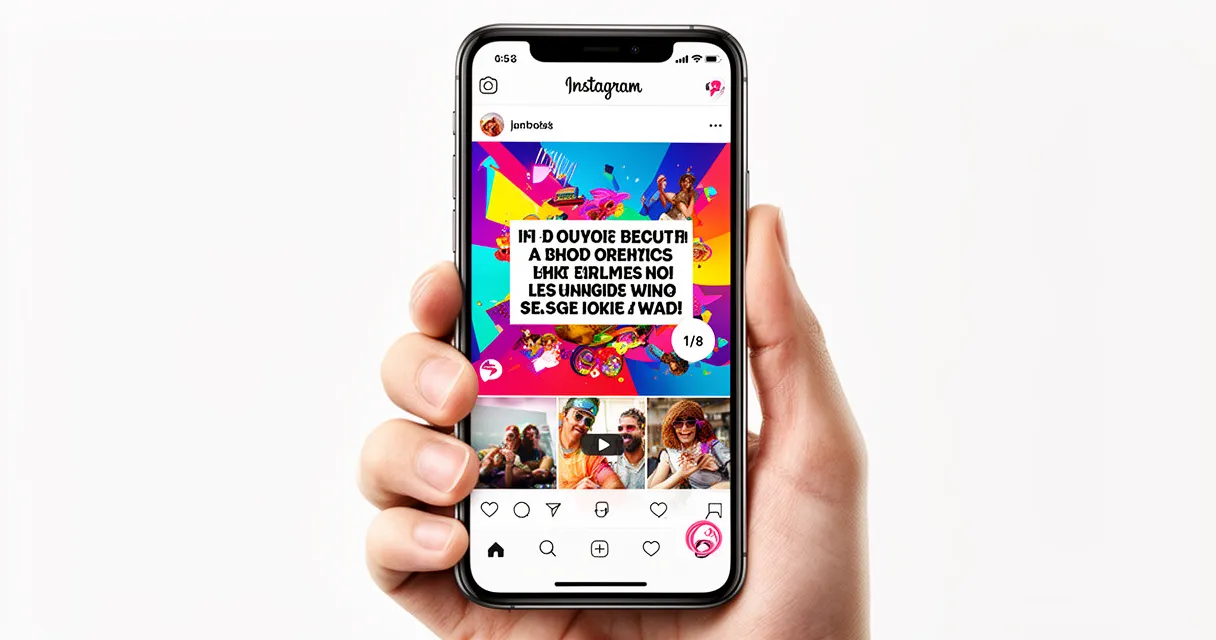
- Add slide numbers (e.g., “3/10”) so viewers know there is more content to swipe through
Design tools with built-in Instagram carousel templates sized at 1080x1350px:
- Canva — the most beginner-friendly option, with dozens of carousel templates and drag-and-drop editing
- Adobe Express — clean templates with brand kit support for consistent colors and fonts
- Figma — more advanced, but free and highly customizable once you learn the basics
Crafting the Hook Slide (Slide 1)
Slide 1 is the highest-leverage element of your entire carousel. If it does not stop the scroll, nothing else matters.
Effective hook slide formats:
- A bold question: “Are you making this Instagram mistake?”
- A surprising stat: “90% of creators skip this — and their reach suffers.”
- A clear content promise: “10 content ideas you can post this week (steal these)”
- A before/after image: show the dramatic gap between the starting state and the result
- A “save this” prompt: “Save this post — you will want to come back to it.”
What to avoid: Do not lead with your logo. Logos are for the last slide. Slide 1 should lead with the viewer’s curiosity or a problem they recognize immediately.
Designing Your CTA Slide (Last Slide)
The last slide closes the loop. Keep it clean and focused on one call to action — not three.
Choose one CTA and stick to it:
- “Save this post”
- “Follow for more tips like this”
- “Share with a friend who needs to see this”
- “Try this today and tell me how it goes in the comments”
Add your Instagram handle and a simple branded visual. The last slide is where you convert engagement into follows, saves, and shares — do not dilute it with multiple asks.
Using AI Tools to Accelerate Your Carousel Creation
AI tools have made it dramatically faster to go from idea to finished carousel — even for beginners with no design background.
ChatGPT or Claude can help you:
- Brainstorm carousel topics based on your niche
- Write the copy for each slide in seconds (give it your format and topic, ask for slide-by-slide text)
- Generate caption options with different tones and hook styles
- Create a full FAQ carousel script from a topic prompt
Canva’s AI features (Magic Write, Magic Design) can generate layout suggestions and text from a brief description of your content.
A practical workflow: Use an AI assistant to draft your 10-slide script, paste each slide’s copy into your design tool, then style it. What used to take 2–3 hours can now take under 45 minutes for a beginner.
Step 4: Publish Your Carousel on Instagram
Once your slides are exported and ready, publishing is straightforward. Here is how to create Instagram carousel posts directly inside the app:
- Tap the + button at the bottom of the screen
- Select Post
- Tap the multi-image stacking icon in the lower-right corner of the image picker (it looks like two overlapping squares)
- Select your slides in the correct order — you cannot rearrange them after upload without starting over
- Apply a filter if you want, or skip this step if your design tool already handled styling
- Tap Next
- Write your caption, add hashtags, tag your location, and tag any accounts
- Tap Share
Important: Double-check your slide order before tapping Share. There is no reorder function after upload — you would have to delete the post and re-upload.
Step 5: Write a Caption That Gets People to Swipe
Your caption does not just describe the carousel — it sells the swipe.
The anatomy of a high-performing carousel caption:
Line 1 (the hook): This is the only line visible before the “more” cut-off. Make it a question, a bold statement, or a direct promise — not a description of what is inside the carousel.
Body: Expand on the carousel’s theme. Share context, a personal story, or one key insight that does not appear in the slides. The caption should add value, not repeat it.
Swipe prompt: Include “Swipe → for [what they get]” early in the caption to signal that there are more slides to explore.
Engagement closer: End with a direct question or prompt that invites comments: “Which tip are you trying first? Drop it below.”
Hashtag strategy for 2026: Use 3–5 highly relevant hashtags rather than 30 generic ones. Instagram’s own guidance and creator data both point to focused hashtags over large clusters of broad tags.
If you want to write engaging captions across platforms, the same principles apply: hook first, value in the body, clear ask at the end.
Instagram Carousel Engagement Tips for Beginners
Publishing is not the finish line — what you do in the first 60 minutes shapes how far your carousel travels.
Post-publish checklist:
- Post at your peak time. Check Instagram Insights → Audience → Most Active Times for your account’s personal peak window.
- Reply to every comment in the first hour. Early comment activity signals to the algorithm that your post is generating conversation.
- Share to your Stories immediately after posting. This drives a traffic burst from your existing followers, which boosts your early engagement rate and feeds the algorithm.
- Create save-worthy content. Saves are one of Instagram’s highest-weighted engagement signals. Checklists, templates, step-by-step breakdowns, and swipe-file resources all drive saves.
- Batch your Instagram carousel content in one session. Creating multiple carousels at once means you always have content ready — no last-minute scrambling, no missed posting days. You can batch your Instagram carousel content in one session to stay consistent without burning out.
Frequently Asked Questions
How many slides should an Instagram carousel post have?
The sweet spot is 8–10 slides. According to Metricool’s Instagram Best Practices 2026 data, carousels with 8–10 slides consistently achieve engagement rates exceeding 2%, with mixed-format carousels (images + video) averaging 2.33% engagement. Instagram allows up to 20 slides, but avoid filler — every slide should earn its place.
What size should images be for an Instagram carousel?
Use 1080x1350px (portrait 4:5 ratio) for the most feed real estate and the best engagement performance. Alternatively, use 1080x1080px (square 1:1) for a consistent look alongside other square posts. All slides in the same carousel must use the same aspect ratio. Keep each image under 8MB.
Do Instagram carousel posts get more reach than regular posts?
Yes. Carousels achieve 1.4x wider reach and 3.1x higher engagement than single-image posts (CreatorsJet Instagram Data Study). Instagram’s algorithm also gives carousels a second chance: if a user does not engage with slide 1, the platform re-serves the carousel showing slide 2 later in the day — effectively doubling the organic reach opportunity for a single post.
How do you write a caption for an Instagram carousel post?
Open with a hook on line 1 (before the “more” cut-off), expand on the carousel theme in the body, include a “swipe →” prompt, end with an engagement question or CTA, and add 3–5 highly relevant hashtags. The caption should complement the slides, not just repeat them.
What should the first slide of an Instagram carousel say to hook viewers?
Slide 1 must give viewers a reason to swipe. Effective hooks include: a bold question (“Are you making this Instagram mistake?”), a surprising stat, a clear content promise (“10 content ideas you can post this week”), or a before/after visual. Avoid leading with your logo — lead with the viewer’s curiosity or a problem they immediately recognize.
Conclusion
Creating Instagram carousel posts as a beginner comes down to four things done well:
- Plan before you design — one topic, a clear format, and your slide copy written before you touch a template
- Use the right dimensions — 1080x1350px, 8–10 slides, consistent aspect ratio throughout
- Nail slides 1 and 10 — hook on slide 1, single CTA on the last slide, value delivered across every slide in between
- Write captions that drive swipes — hook on line 1, swipe prompt in the body, engagement question at the end, 3–5 focused hashtags
You do not need expensive tools or years of design experience. You need a clear structure, the right specs, and the habit of creating consistently.
Start with one topic you know well, map out 8 slides, and publish your first carousel this week. The algorithm rewards the creators who show up — and now you know exactly how to show up with content that performs.